6.5.  Test Suites

6.5.1. Maintain Test Suites
6.5.1.1. Create Test Suites
6.5.1.2. Searching and Sorting Test Suites
6.5.1.3. Categorization of Test Suites
6.5.1.4. Editing Test Suites

A test suite is a set of test cases which can be executed in conjunction. The results of the test suite execution are used to verify and ensure that a system meets its design specifications and requirements.

6.5.1.  Maintain Test Suites

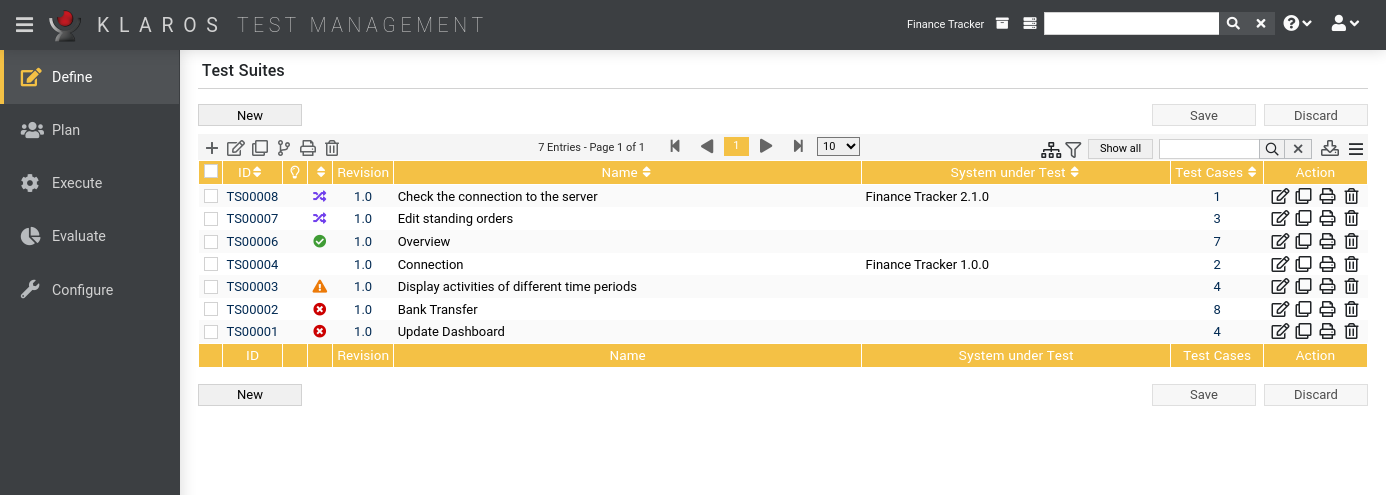
The Maintain Test Suites section gives an overview of the test suites and allows the creation, removal, cloning and updating of test suites, searching through all of the test suites in the selected project and the assigning of test suites to categories ( Figure 6.17 ). All of this can be done through the tabular view or on the details page.

Figure 6.17. The Maintain Test Suites Screen

The Maintain Test Suites Screen


The Maintain Test Suites screen shows a table with all of the test suites defined for the current project. Each row of the table represents a test suite, the columns represent attributes of the test suite. Clicking on the table fields allows direct editing of the attributes. The column Test Cases shows the amount of test cases contained in the test suite.

The selection column allows test suites to be selected and group actions to be carried out. The checkbox in the title bar of the table is a global select button, which allows bulk actions to be carried out for all test suites that match the current search criteria and, if categorization is enabled, are in the currently selected category.

The bulk actions available on the Maintain Test Suites screen are: Delete, Clone, Create New Revisions and Assign to category (Klaros-Testmanagement Enterprise Edition only). The bulk action buttons can be found above the table on the left.

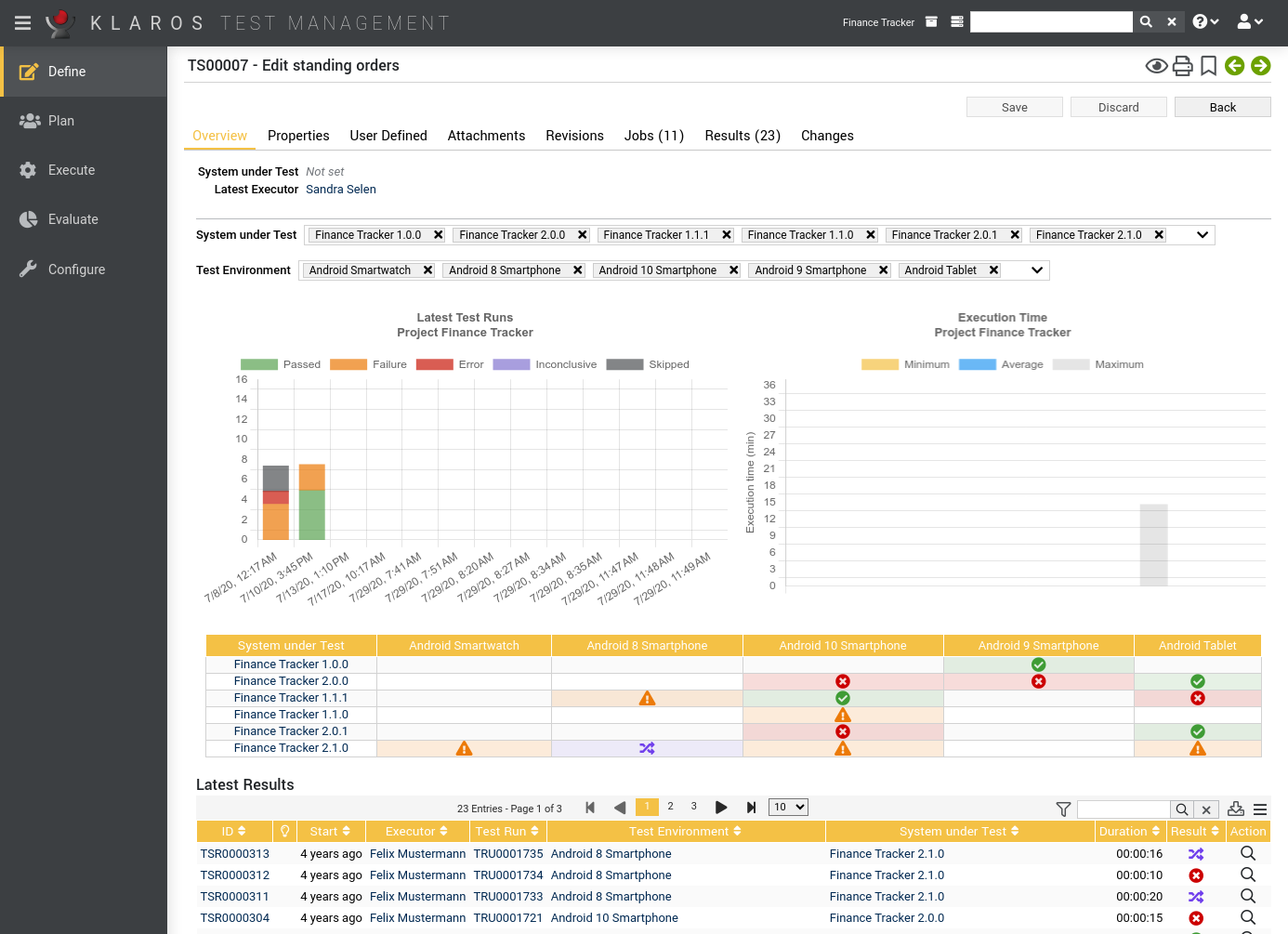
Pressing the Save button submits the changes that have been made and pressing the Cancel button discards them. Clicking the print icon allows all fields of the test case to be displayed in a single, printer-friendly page( Figure 6.18 ). the print view is only available in Klaros-Testmanagement Enterprise Edition.

Figure 6.18. The Edit Test Cases Screen

The Edit Test Cases Screen


6.5.1.1. Create Test Suites

Clicking the New button allows the user to create a new test suite ( Figure 6.17). An empty row is added at the beginning of the table. The test suite description can be specified. The test suite ID is automatically assigned by Klaros-Testmanagement. The project is the current selected project. Clicking on the Edit icon ( Section 6.5.1.4, “Editing Test Suites”) allows the user to add or remove test cases, alter the description or assign systems under test . Clicking the clones a test suite. Pressing the Save button submits the changes that have been made and pressing the Cancel button discards them. The user can create and save more than one test suite at a time.

[Note]What to do to create a new revision of the test suite?

To create a new revision of the test suite the checkbox Create new revsion? must be selected.

6.5.1.2.  Searching and Sorting Test Suites

It is possible to search for test suites and sort the results of the search with the filtering and sorting options. The filtering and sorting options become visible by opening the Filter / Sort panel. The Filter / Sort panel contains two tables. The table on the left contains the filtering parameters, while the table on the right contains the sorting parameters.

Below the two tables are two buttons:

Apply

The Apply button applies the filter and sorting criteria specified in the two tables above and presents the filtered and sorted result in the table below.

Reset

The Reset button clears the tables with the filter and sorting criteria and displays all projects.

6.5.1.2.1.  Specifying Search Criteria for Test Suites

Each line in the filter table represents a criterion that restricts the result set that is displayed in the table below, i.e. the set of all test suites is filtered for the conjunction of all criteria listed in the filtering table.

By clicking the button, a new and empty row for a filter criterion is appended to the table. The table with the filtering criteria has four columns:

  • The Field column denotes the field in the table that the criterion is filtering for. The fields which can be filtered in the Filter / Sort panel of the maintain test suites page are ID and Description , as well as any user-defined properties. The process of maintaining the user-defined properties is described in section Section 6.1.1.8, “Editing the user-defined properties of a project” . User-defined properties are only available in Klaros-Testmanagement Enterprise Edition.

  • The Type column denotes the operator that is used for the criterion. The following operators are available on the maintain test suites page:

    Equals

    Only the items that exactly match the value of the criterion are shown.

    Not equals

    The items that do not equal the value of the criterion are shown in the result table.

    Greater than or equals

    Items that are greater than or equal the value of the criterion are shown.

    Less than or equals

    Items that are less than or equal the value of the criterion are shown.

    Greater than

    Items that are greater than the value of the criterion are shown.

    Less than

    Items that are less than the value of the criterion are shown.

    Like

    Items that have a part that matches value of the criterion are shown.

  • The Value column defines the value for the filtering criterion.

  • The Action column contains a button ( ) for deleting the criterion in the current line.

6.5.1.2.2.  Specifying Sorting Criteria for Test Suites

The table that contains the list of test suites can be sorted. The criteria for the sorting are specified in the right table in the Filter / Sort panel. It is possible to specify more than one sorting option. If there is more than one sorting option, the uppermost row in the sorting criterion table has the highest priority and the lowest row has the lowest priority.

When the ; button is clicked, a new empty row for a sorting criterion is appended at the bottom of the sorting options table. Each row in the sorting options table has in the Action column a Delete button ( ). By pressing this button the row with the sorting criterion can be removed.

The sorting options table contains three columns:

  • The Order By column denotes the field in the results table that the sorting applies to. The fields that can be sorted for on the maintain test suites page are ID and Description , as well as any user-defined properties. The process of maintaining the user-defined properties is described in section Section 6.1.1.8, “Editing the user-defined properties of a project” . User-defined properties are only available in Klaros-Testmanagement Enterprise Edition.

  • The Type column defines the direction of the sorting sequence, i.e. descending or ascending.

  • The Action column contains a button for deleting the sorting criterion.

6.5.1.3.  Categorization of Test Suites

[Important]Klaros-Testmanagement Enterprise Edition Feature

This feature is only available in Klaros-Testmanagement Enterprise Edition.

The categorization panel contains some artifacts which help to group test suites together, the Category Group and the Category . Test environments may be assigned to one category in each category group. There is no limit on the amount of categories or category groups which may be created.

Using Categorization, it is possible to group test suites in user-defined categories. In order to activate categorization, the Categories panel must be opened. The Categories panel contains 3 different views, the Edit view, the Tree view and the Menu view. If no categories have been defined, only the edit view may be used. Each view allows selection of the active category group through the use of a dropdown menu, or selection of the blank category group to disable categorization.

6.5.1.3.1.  The Edit View

This view allows the creation and naming of category groups and categories, as well as the organization of category heirarchies. Pressing the button at the top of this view creates a new category group, and enables the use of the category group dropdown menu. If a category group is selected, it may be renamed in this view. Categories may also be added as sub-categories of the group's root category, renamed, given a description and be nested in a hierarchical manner.

6.5.1.3.2.  The Tree View

This view shows an overview of the category structure for test suites . The available categories are represented as a collapsible tree, with the name of each category is shown, along with the number of test suites it contains. The description of each category is shown as a tooltip when its name is hovered over with the mouse pointer.

6.5.1.3.3.  The Menu View

This view allows more compact use of the category panel. It contains a drop-down menu which enables the user to choose any of the available categories, through a submenu system.

6.5.1.4. Editing Test Suites

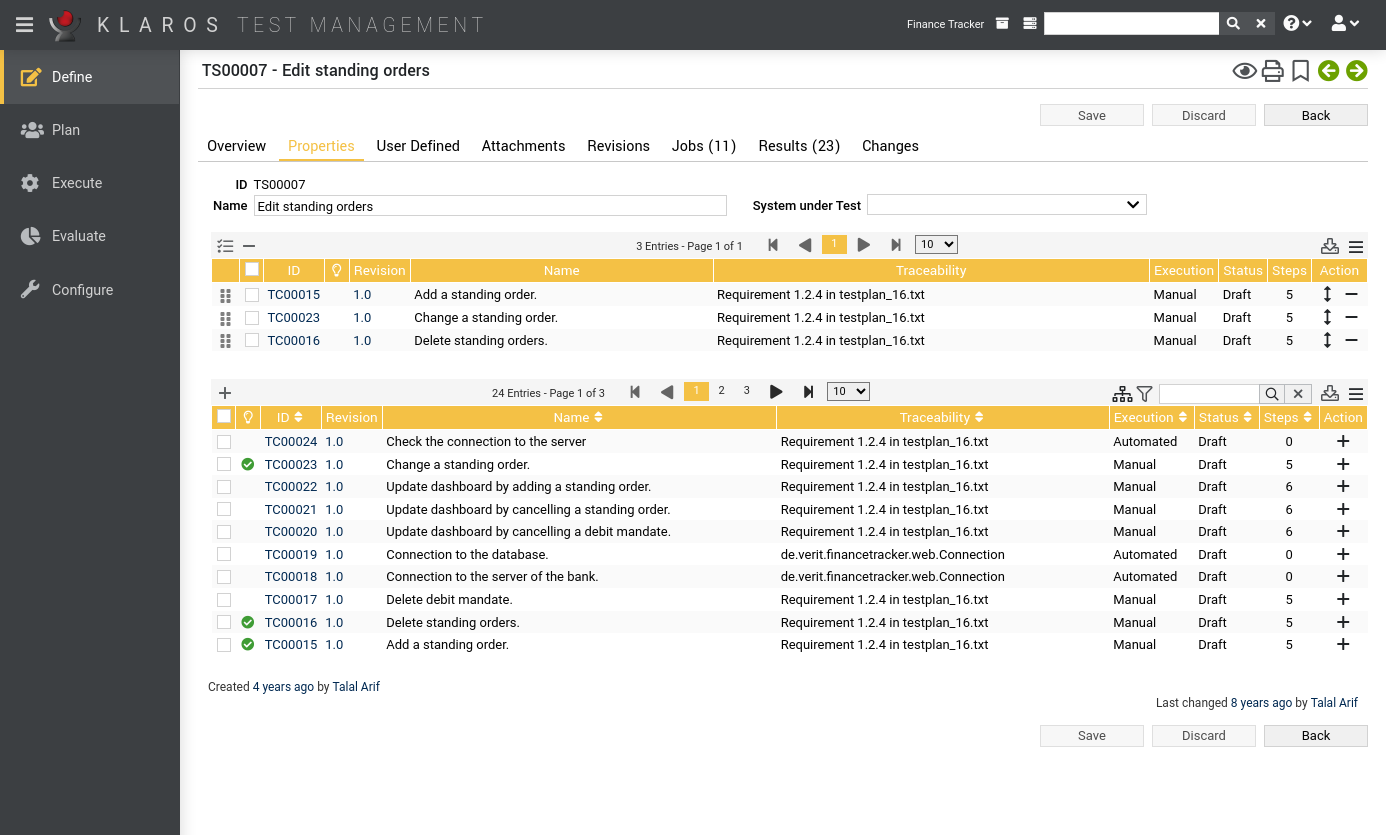
Clicking the Edit icon opens the Edit Test Suite page. The page allows editing of the test cases that are involved in this test suite, changing their order, the test suite's description and its system under test. The edit page is shown in Figure 6.19 . The input box in the upper left corner can be used to change the description of the test suite, the drop-down to the right of this allows the alteration of the assigned system under test.

[Note]The assigned system under test of a test suite

The assignment of a test suite with a system under test does not affect the functionality of Klaros-Testmanagement. The test suites can be still run with other systems under test. This attribute is just a guideline for the user.

Clicking the Add icon adds the test case to the test suite. Clicking the Remove icon removes the test case from the test suite. Clicking the or icons changes the order of the test cases.

Figure 6.19. The Edit Test Suite Screen

The Edit Test Suite Screen


[Note] Warning Sign in the ID Column

A manual test case which contains no steps is not executable. To indicate this, a warning sign ( ) is displayed in the ID column. If the test suite contains at least one test case which is not executable, the execution of the whole test plan is inhibited.

Clicking the Save button submits the changes that have been made and clicking the Cancel button discards the changes.

6.5.1.4.1. Editing the user-defined properties of a Test Suite

If there are user-defined properties for test suites configured, they can be edited on this tab. Figure 6.20 )

[Note]Note

The tab is disabled if no user defined properties for test suites exist. The maintenance of user defined properties is described in Section 6.1.1.8, “Editing the user-defined properties of a project” .

Figure 6.20. The Test Suite User-Defined Properties Screen

The Test Suite User-Defined Properties Screen


6.5.1.4.2.  Searching and Sorting available Test Cases

It is possible to search for available test cases and sort the results of the search with the filtering and sorting options. The filtering and sorting options become visible by opening the Filter / Sort panel. The Filter / Sort panel contains two tables. The table on the left contains the filtering parameters, while the table on the right contains the sorting parameters.

Below the two tables are two buttons:

Apply

The Apply button applies the filter and sorting criteria specified in the two tables above and presents the filtered and sorted result in the table below.

Reset

The Reset button clears the tables with the filter and sorting criteria and displays all projects.

Specifying Search Criteria for available Test Cases

Each line in the filter table represents a criterion that restricts the result set that is displayed in the table below, i.e. the set of all available test cases is filtered for the conjunction of all criteria listed in the filtering table.

By clicking the button, a new and empty row for a filter criterion is appended to the table. The table with the filtering criteria has four columns:

  • The Field column denotes the field in the table that the criterion is filtering for. The fields which can be filtered in the Filter / Sort panel of the test suite details page are ID, Name, Description, Traceability, Priority, State, Execution, Team, Type, Area, Level, Variety, Docbase, Dependency, Note, Evaluation, Precondition and Postcondition. , as well as any user-defined properties. The process of maintaining the user-defined properties is described in section Section 6.1.1.8, “Editing the user-defined properties of a project” . User-defined properties are only available in Klaros-Testmanagement Enterprise Edition.

  • The Type column denotes the operator that is used for the criterion. The following operators are available on the test suite details page:

    Equals

    Only the items that exactly match the value of the criterion are shown.

    Not equals

    The items that do not equal the value of the criterion are shown in the result table.

    Greater than or equals

    Items that are greater than or equal the value of the criterion are shown.

    Less than or equals

    Items that are less than or equal the value of the criterion are shown.

    Greater than

    Items that are greater than the value of the criterion are shown.

    Less than

    Items that are less than the value of the criterion are shown.

    Like

    Items that have a part that matches value of the criterion are shown.

  • The Value column defines the value for the filtering criterion.

  • The Action column contains a button ( ) for deleting the criterion in the current line.

Specifying Sorting Criteria for available Test Cases

The table that contains the list of available test cases can be sorted. The criteria for the sorting are specified in the right table in the Filter / Sort panel. It is possible to specify more than one sorting option. If there is more than one sorting option, the uppermost row in the sorting criterion table has the highest priority and the lowest row has the lowest priority.

When the ; button is clicked, a new empty row for a sorting criterion is appended at the bottom of the sorting options table. Each row in the sorting options table has in the Action column a Delete button ( ). By pressing this button the row with the sorting criterion can be removed.

The sorting options table contains three columns:

  • The Order By column denotes the field in the results table that the sorting applies to. The fields that can be sorted for on the test suite details page are ID, Name, Description, Traceability, Priority, State, Execution, Team, Type, Area, Level, Variety, Docbase, Dependency, Note, Evaluation, Precondition and Postcondition. , as well as any user-defined properties. The process of maintaining the user-defined properties is described in section Section 6.1.1.8, “Editing the user-defined properties of a project” . User-defined properties are only available in Klaros-Testmanagement Enterprise Edition.

  • The Type column defines the direction of the sorting sequence, i.e. descending or ascending.

  • The Action column contains a button for deleting the sorting criterion.

6.5.1.4.3. Revisions

Clicking the Revisions tab displays a page which shows the revisions history of the test suite.

[Warning]Warning

This tab is only enabled if the test suite has a revision history to show.

Figure 6.21. The Revisions Screen

The Revisions Screen


Clicking the relevant row of the Revisions column in the table allows the user to browse and compare the revisions.