| 6.7. Test Cases | ||
|---|---|---|

|
Chapter 6. Define |  |
| 6.7. Test Cases | ||
|---|---|---|
|
|
Chapter 6. Define | |
A test case is a set of input values, execution preconditions, expected results and execution postconditions, developed for a particular objective or test condition, in order to determine whether an application or software system meets its specifications. This chapter shows how to create and edit test cases.
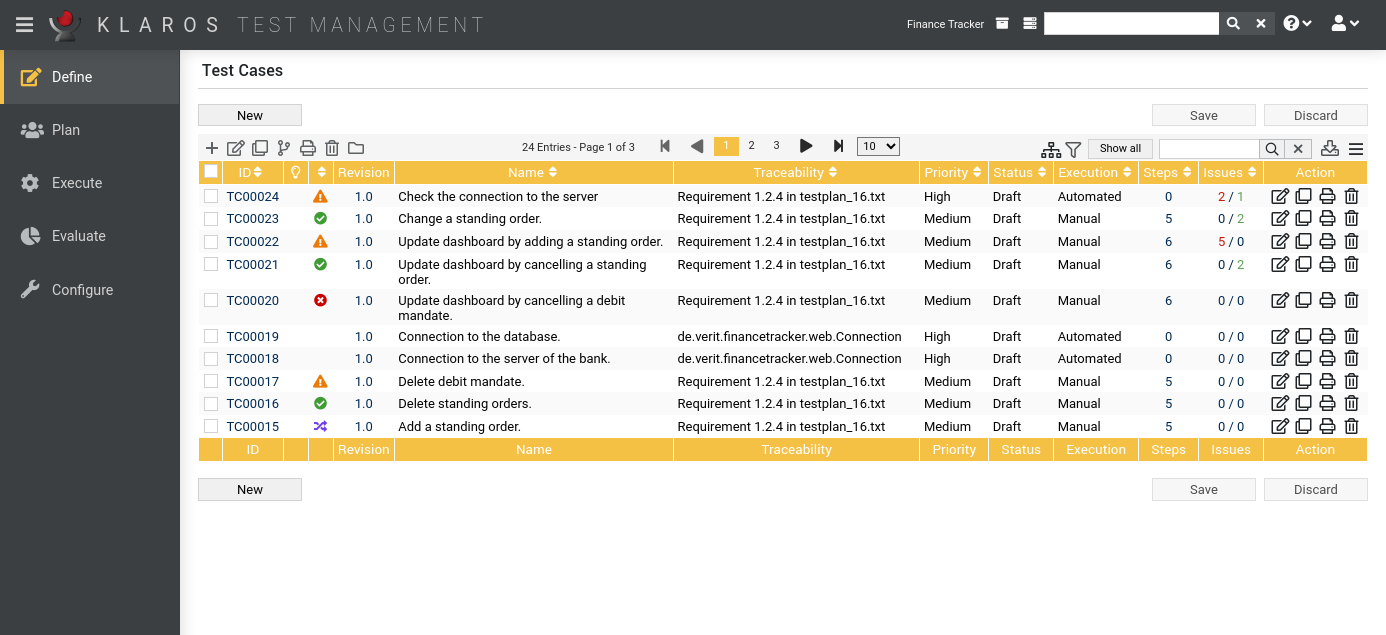
The overview page displays all existing test cases in the selected project in a table. New test cases are created here.
The table shows the following values:
|
ID |
Assigned automatically. |
|
Additional Information |
A tooltip appears when the cursor is placed over the icon shown here. |
|
Revision |
Die Revision des Testfalles. |
|
Name |
The name of the test case. |
|
Traceability |
The requirement assigned to this test case. |
|
Priority |
The priority of the test case. Possible values are Low, Medium, High. |
|
State |
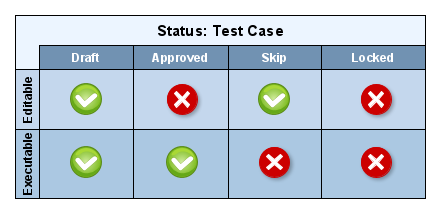
The test case state determines whether it is editable or executable. Only test cases with the state Draft or Skip are editable. Only test cases with the state Draft or Approved are executable. |
|
Execution |
Manual oder Automated. |
|
Steps |
The number of associated test steps. |
|
Issues |
Die Anzahl der offenen und behobenen Issues. |
|
Action |
The executable actions. |
Name, Traceability, Priority, Status and Execution can be edited directly in the table rows.
By clicking on the button a new empty table row will appear. Now, Name, Traceability, Priority and Execution can be defined.
With the new test case is created and saved. The ID of the test case (TC00001) is automatically assigned by Klaros-Testmanagement. Click on the ID TC00001 to get to the detail page of the test case.
With several table rows can be created and edited at the same time. Only when clicking on the data is stored in the database.
With all changes are undone.
![[Note]](images/note.png) |
Unsaved Changes |
|---|---|
|
All rows marked with red IDs contain changes that have not yet been saved. |
The following actions can be performed in the action column:
If a test case has been deleted, it is initially marked with a deletion marker and is only visible to administrators. For deleted test cases, the following actions are available instead of Delete:
On the Test Cases page, one or more test case can be selected for bulk actions. Bulk actions are described in Section 5.2.3.1.5, “Bulk Actions”.
The following bulk actions are supported for test cases:
For additional information, see Section 5.2.3.1.5, “Bulk Actions”.
The following operations can be performed in the line above the table on the right:
All operations are described in detail in Section 5.2.3.1, “Overview Page”.
Each test case has its own detail page with several additional tabs. Clicking on the ID of the respective test case or on the icon on the right in the action column takes you to the tab that was selected last. When called for the first time, this is the Overview tab.
The following tabs are available: Overview, Properties, User Defined, Steps, Attachments, Revisions, Issues, Jobs, Results and Changes.
On the detail pages, there are additional icons in the top right corner of the header. The following actions can be performed here:
|
Review |
Creates a review job. |
|
Open print view |
A print-ready view of the test case can be created here. With a click on the icon this opens in a new browser tab. Print views are described in detail in Section 5.2.3.2.1, “Print Pages”. |
|
Create Bookmarks |
Each individual detail page can also be reached directly via a hyperlink. By clicking on the icon this link is copied to the clipboard. The creation of bookmarks is described in detail in Section 5.2.3.2.2, “Bookmarks”. |
|
Browse |
Use the green arrows at the very top right to switch between the test environments present on the previous page. |
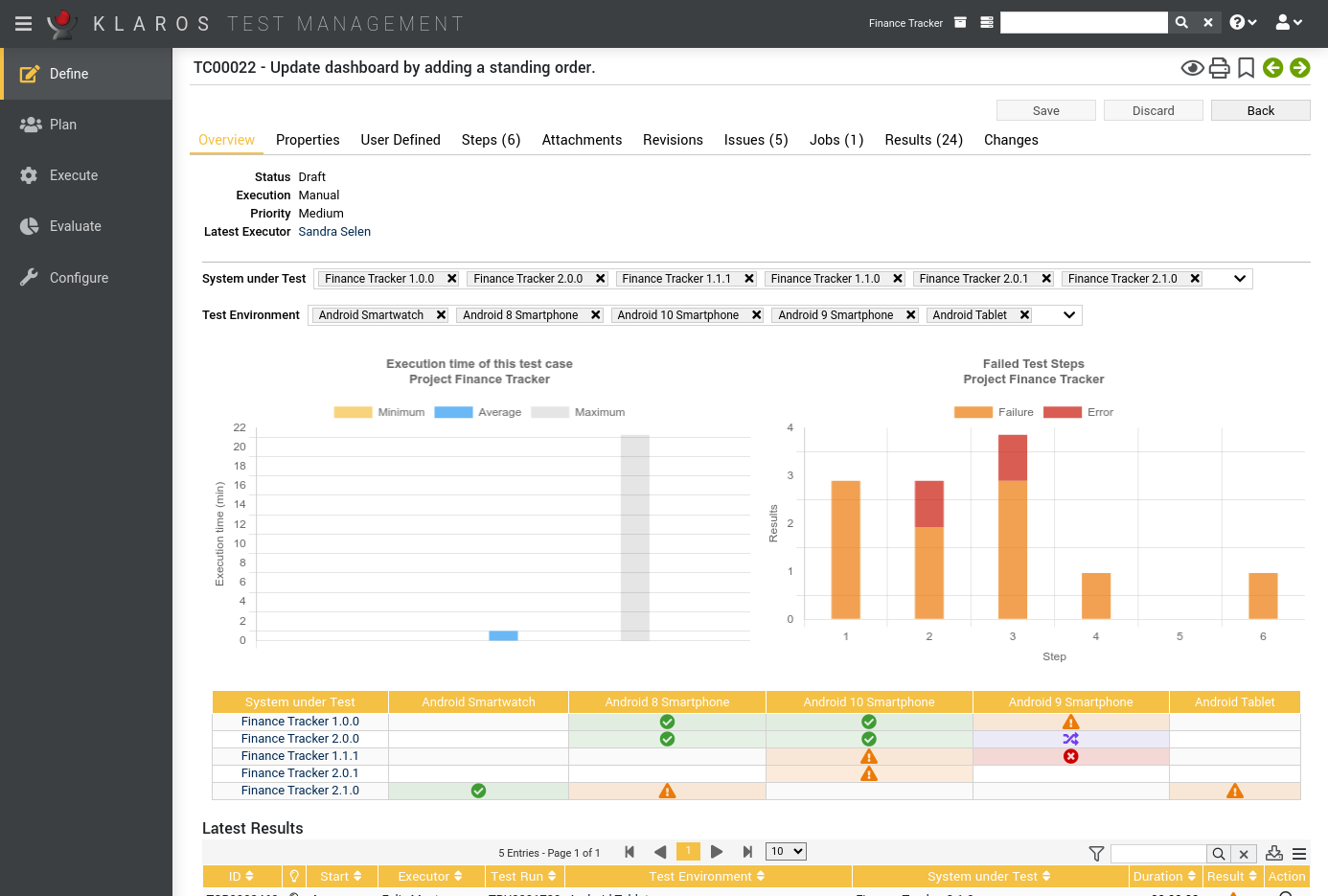
The following values are displayed on the overview tab:
|
State |
The state of the test case. Possible values are Locked, Approved, Draft and Skip. |
|
Execution |
The type of test case execution: Manual or Automated. |
|
Priority |
The priority of the test case: Low, Medium or High. |
|
Latest Executor |
The user who last executed this test case. |
|
Execution Times of this Test Case |
This graph shows the minimum, maximum and average execution times for this test case. This allows a better estimate of the time required for future executions of this test case. |
|
Most unsuccessful Test Steps |
This graph shows all test steps of this test case and which steps have been marked as failed or error during a test run. This graph can be used for determining possible misconfigurations, if errors happen more frequently at one specific step, for example. |
|
System under Test Overview |
This table shows the latest result of this test case for every system under test and test environment this test case has been executed in. Pressing the result icon will open up the appertaining test case result. |
|
Latest Results |
This table shows the latest results for this test case. This table is limited to five entries. The other results can be viewed by pressing the icon. |
|
Latest Issues |
This table shows the latest issues that are linked to this test case. Click on the icon to display the issue directly in the Issue-Management-System |
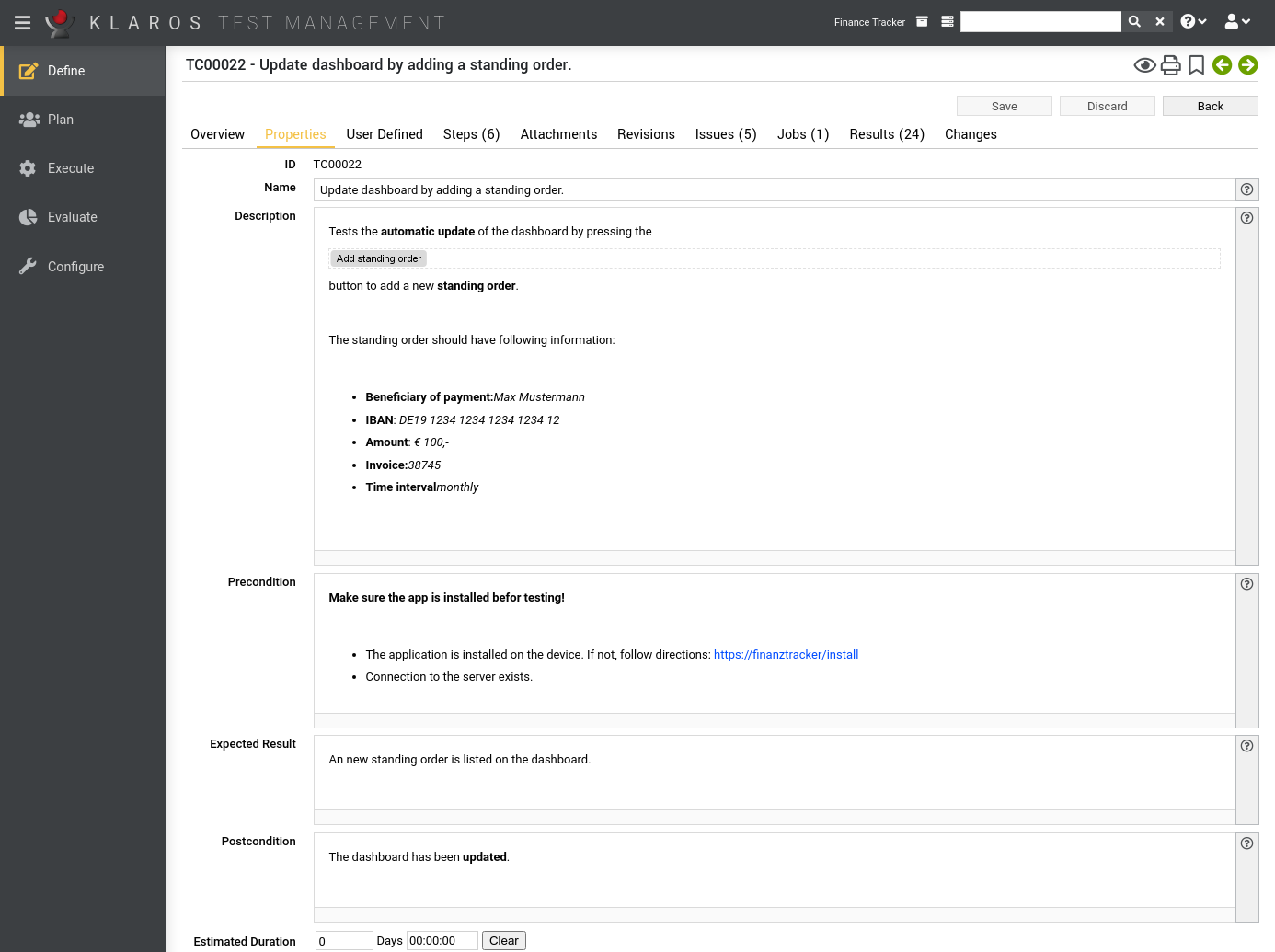
This tab ( Figure 6.41) allows the user to view or change the following attributes of the test case:
|
Editor Settings |
|---|---|
|
Under Define --> Project --> Properties you can set whether the editor displays only text or HTML. With the HTML setting, a bar with formatting options appears when you click in the text field. |
|
ID |
Assigned automatically. |
|
Name |
The name of the test case. |
|
Description |
The textual description of the test case. |
|
Precondition |
The precondition for this test case, describing the condition for executing the test case,
e.g It is required that the database is initialized..
|
|
Expected Result |
The visible behavior of the system predicted while carrying out the test step,
e.g. The user receives a message that the login succeeded.
|
|
Postcondition |
The environmental and state conditions that must be fulfilled after the execution of the test case,
e.g. The user is authenticated and has access to the system.
|
|
Estimated Duration |
The estimated duration required to complete this test case.. |
|
Note |
An optional comment, such as notes to the tester. |
|
Test Type |
A group of test activities based on specific test objectives with the purpose of testing a component or system for specific characteristics (Functional, Non Functional, Structural, Regression, Retest). |
|
Variety |
The expected outcome of the test: positive or negative. |
|
Priority |
The priority of the test case: Low, Medium or High. |
|
Team |
The team that is responsible for the test case. |
|
Docbase |
A reference to the document this test case is based on, which may e.g. contain the requirements this test case is related to. |
|
Evaluation |
The type of test result evaluation: Manual or Automated. |
You can create your own fields to meet individual requirements. For further information please refer to Section 5.2.3.2.4, “User Defined Properties”.
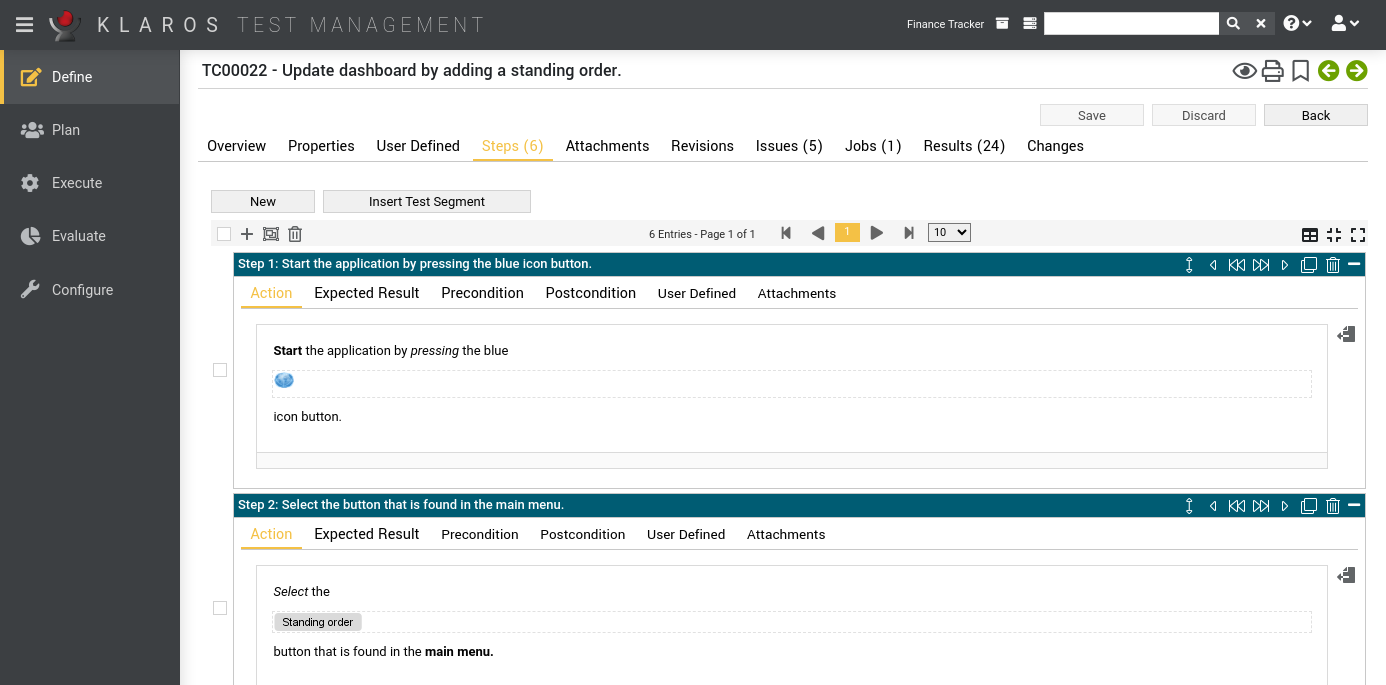
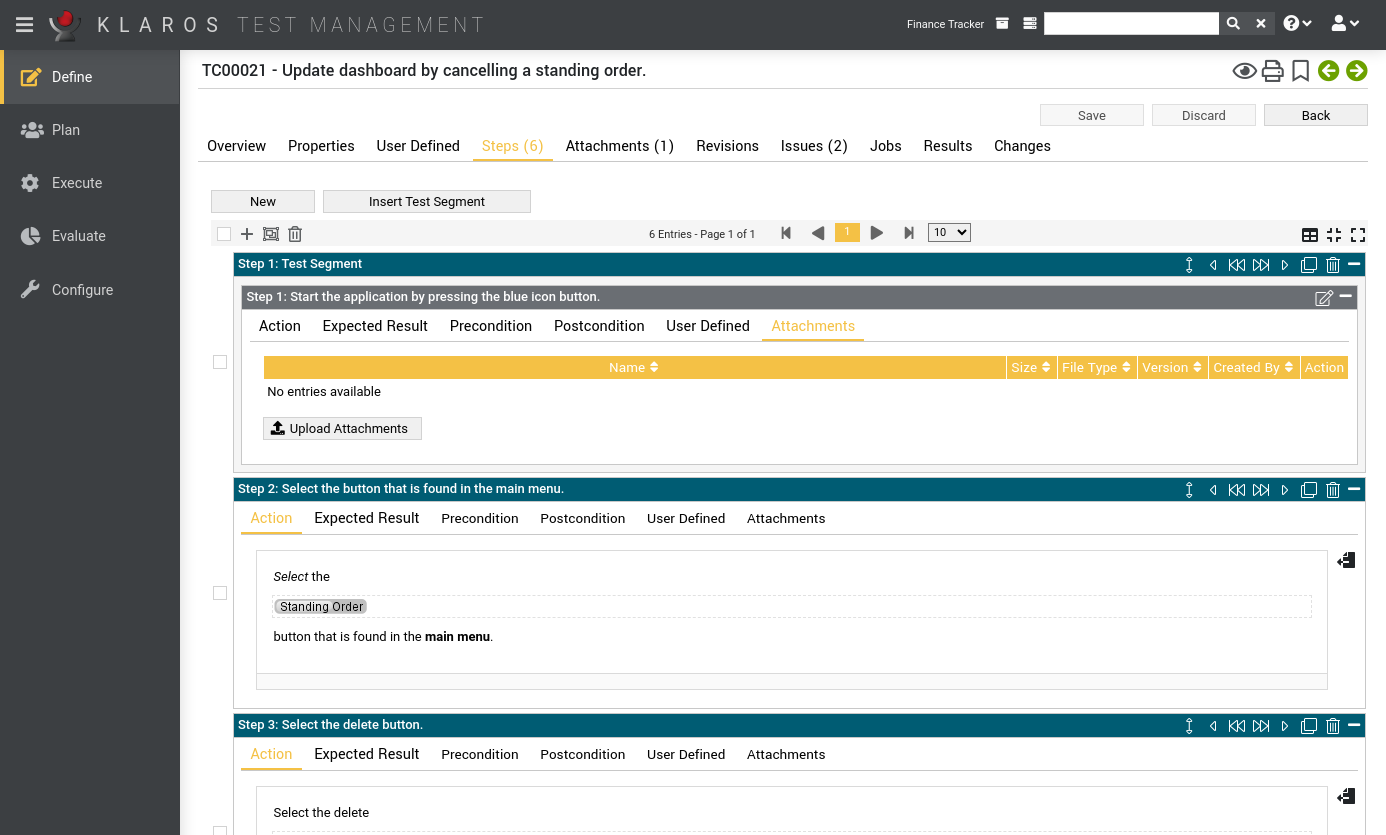
In the Steps tab, test steps may be added to or removed from the test case. The following attributes of single test steps may also be changed:
Clicking on the button opens the step editor for creating a new test step.
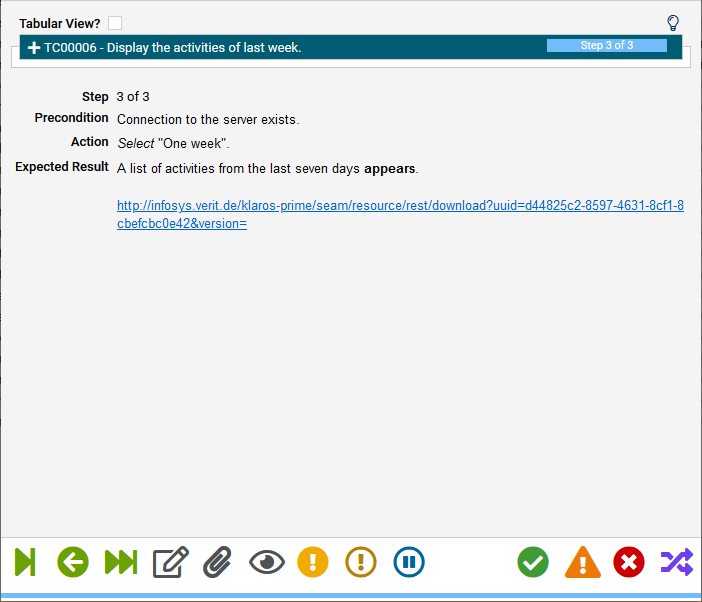
As soon as the input field is activated, a toolbar appears in the text field. The texts can be formatted with this as well as be equipped with links and pictures.
|
Actions |
The description of the action to take, e.g. Enter name and password, and click the Login button. |
|
Expected Result |
The (visible) behavior of the system predicted while carrying out the test step e.g. The user receives a message that the login succeeded. |
|
Precondition |
Condition that must be fulfilled before the execution of the test step, e.g. The user is not yet logged in. |
|
Postcondition |
The environmental and state conditions that must be fulfilled after the execution of the test case e.g.
The user is authenticated and has access to the system. |
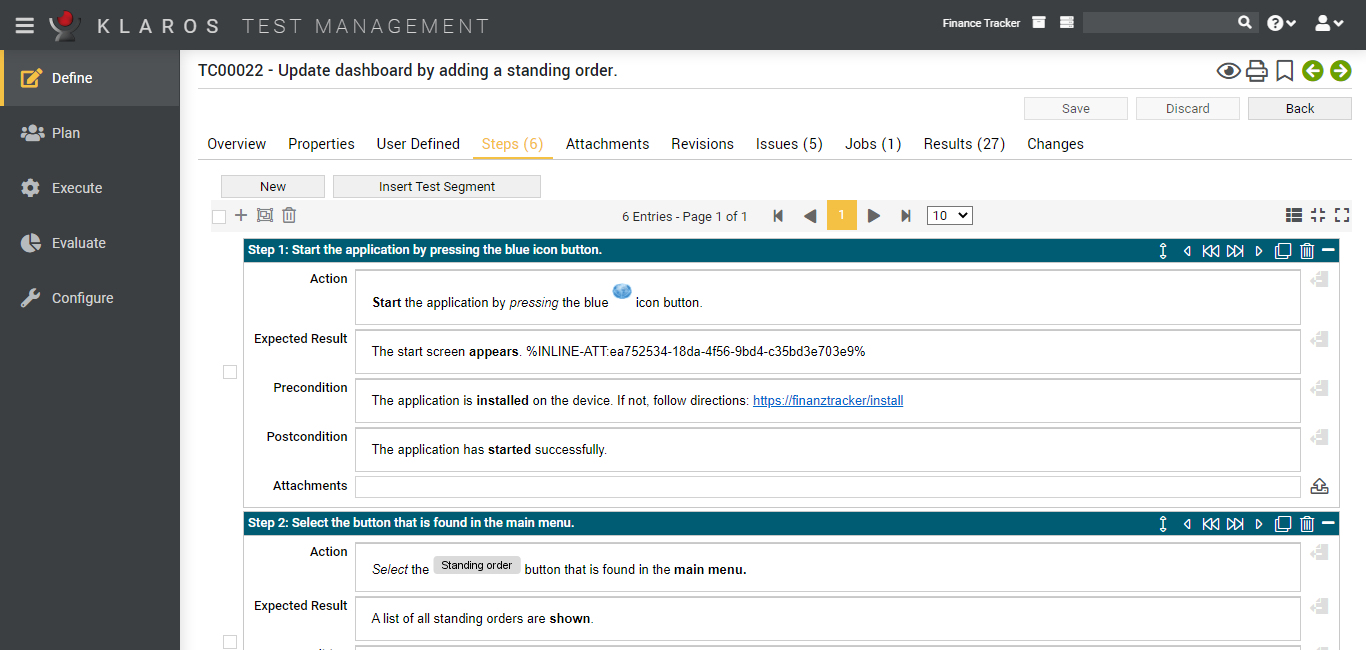
Pressing one of the buttons next to the Description, Expected Result, Precondition and Postcondition text fields opens up a dialog which allows to embed an attachment into the text.
|
Note |
|---|---|
|
The attachments to be selected must have been previously uploaded in the Attachments view. |
Pressing the button, while having an attachment selected, will insert a reference in the form of %inline-att:[attachment-identifier]%, e.g. %inline-att:9e3df155-359f-40e7-8c78-7ae9aac6a8ab%.
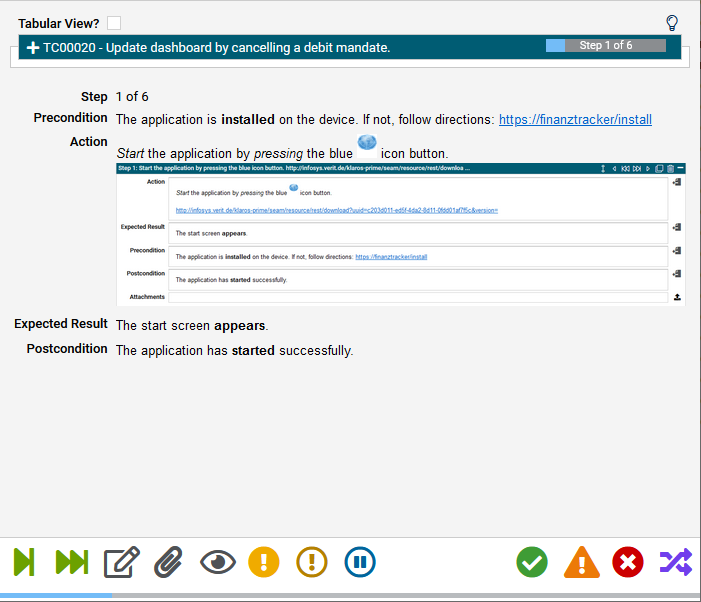
Depending on whether the attachment is an image, this reference will be replaced by a scalable preview image during the execution of the test case. Otherwise, the reference will be replaced by a hyperlink that will open the attachment in a new browser tab.
You can add any files as attachments to a test case. For more information, see Section 5.2.3.2.6, “Attachments”.
Test cases may exist in different revisions. For more information, see Section 5.2.3.2.5, “Revisions”.
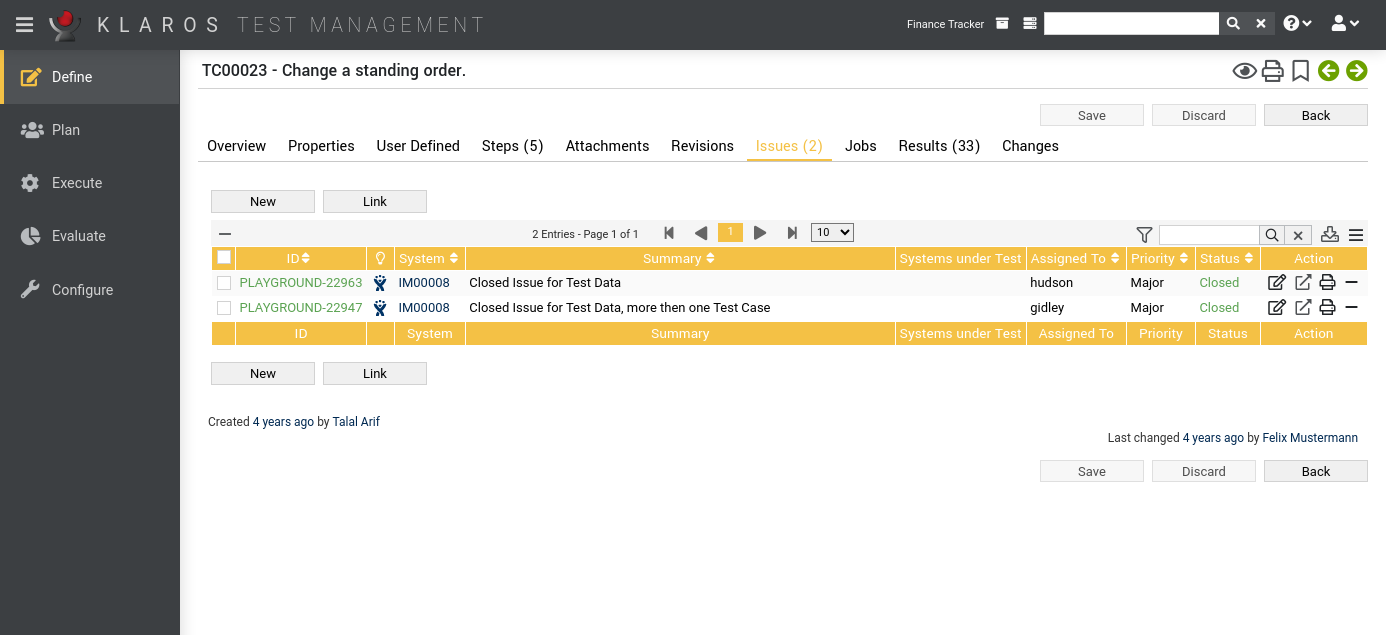
This view lists all issues that are associated with this test case.
The table shows the following values:
|
ID |
The ID of the issue in the external issue management system. |
|
System |
The external issue management system of this issue. |
|
Additional Information |
A tooltip appears when the cursor is placed over the icon shown here. |
|
Summary |
The summary of the issue. |
|
Created |
The date when the issue was created. |
|
Created by |
The user who created the issue. |
|
Assigned |
The user to whom the issue is assigned. |
|
Priority |
The priority of the issue. The possible values are specified by the external issue management system. |
|
Status |
The status of the issue. The possible values are specified by the external issue management system. |
|
Actions |
The executable actions. |
Clicking opens the Issue Details page ( Section 9.6.6, “Issue Details (Creating a new Issue)”), where new issues can be created and linked to the test case. Clicking links existing issues to the test case ( Section 9.6.7, “Link Issue”).
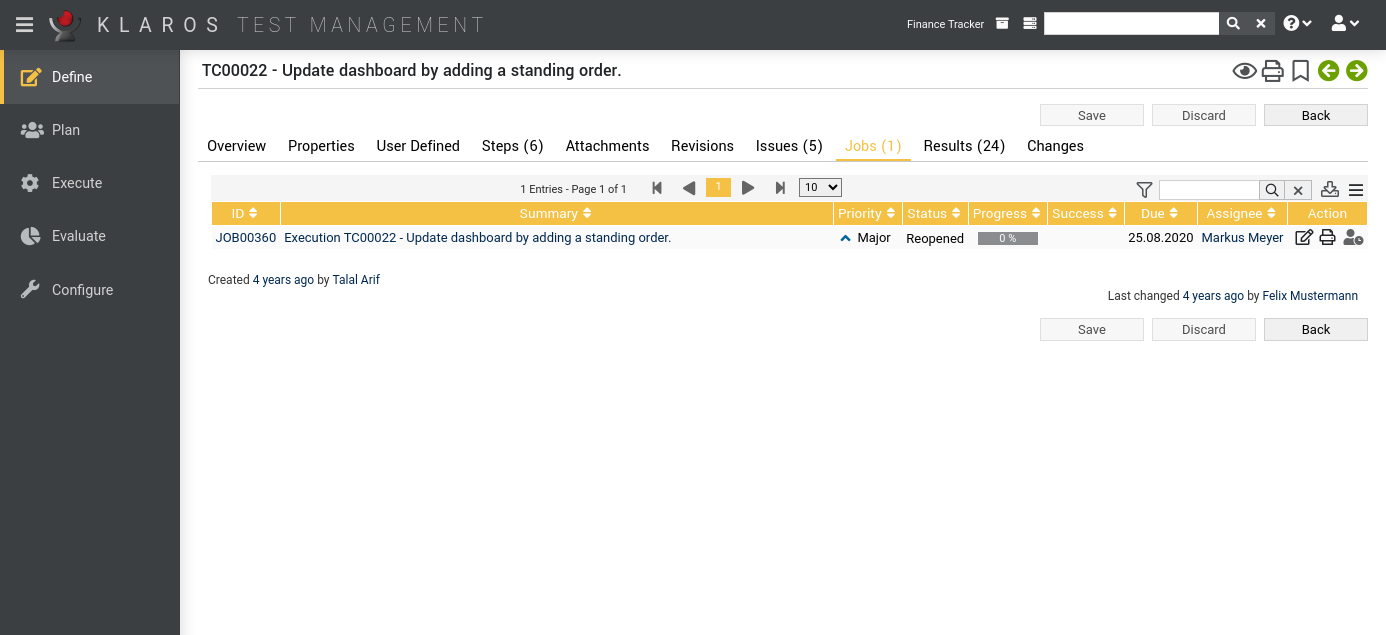
This view lists all the jobs in which this test case is included. These jobs can be executed directly from this view. For more information on managing jobs, see Section 7.1, “Jobs”.
The results tab is further divided into a Test Runs, Test Case Results and a Test Suite Results tab, showing the test results related to this test suite as described in Section 5.2.3.2.7, “Test Runs and Results”.
The tab Changes shows the change history of this test case.
For a detailed description of the Changes view, see Section 5.2.3.2.8, “Change History”.
|
|
 |
|
| 6.6. Test Segments |  |
6.8. Test Suites |