Chapter 9. Reports

Table of Contents

9.1. Create A New Report Template
9.1.1. Dealing with Parameters
9.2. Applying a Report Template
9.3. Example Report
9.3.1. Creating the Groovy Script
9.3.2. Creating the Report Template
9.3.3. Creating a Chart
9.3.3.1. Pie Chart Groovy Script
9.3.3.2. Pie Chart Template Script
9.3.4. Including Images

[Important]Klaros-Testmanagement Enterprise Edition Feature

This feature is only available in the Klaros-Testmanagement Enterprise Edition.

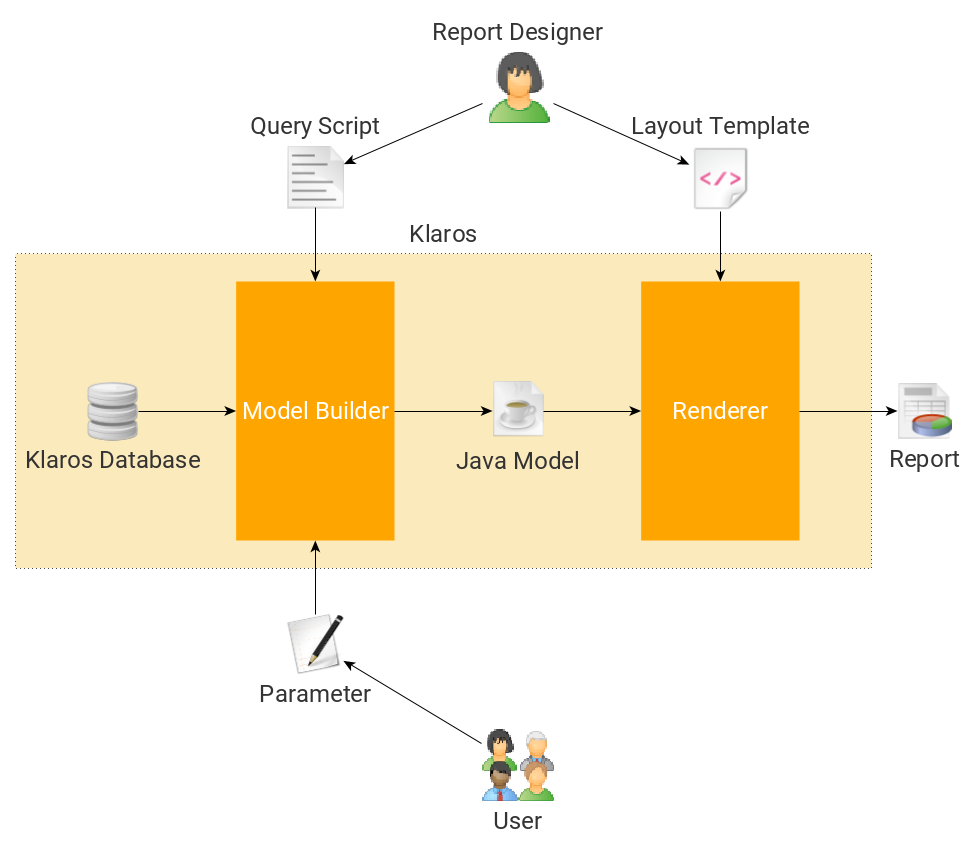
With the Enterprise Edition of Klaros-Testmanagement it is possible to define custom Reports. Though Klaros-Testmanagement already provides several Reports, it might be helpful to design new Reports that suite your and your customer's needs. Figure 9.1, “The Report Generation Process” gives an overview of the Report generation process. As the Report definition process is based on a Groovy script and SeamPDF, basic knowledge in Java programming and XML are helpful for a Report Designer.

Figure 9.1. The Report Generation Process

The Report Generation Process

The reporting process involves two roles, the Report Designer and the Report User. While the Report Designer provides the outlook of the Report and prepares the Report data, the Report User applies the Reports to the data collected in Klaros-Testmanagement. The Report Designer has to provide two scripts to build a Report. One script prepares the data and is implemented in Groovy, while the second script describes the layout of the Report and is called the report template. The Groovy script taking care of data retrieval and preparation is provided by a Java class that implements the Section D.2, “KlarosScript Interface”. This interface defines one method called execute and takes a de.verit.klaros.scripting.KlarosContext object as input parameter.

To retrieve the data from Klaros-Testmanagement the designer can access the de.verit.klaros.core.model via HQL. The main task of the class is to provide and prepare the data for the Report. The data for the report template must then be stored in the de.verit.klaros.scripting.KlarosContext object passed to the execute method. To make Reports more flexible for Report Users, it is possible to pass parameters to the Groovy script. The parameters are stored in the context and can be accessed from the Groovy script.

[Tip]Predefined objects in the context

The de.verit.klaros.scripting.KlarosContext object already contains predefined objects. For a list please refer to Section D.1, “Context Variables”.

The report template must be implemented using SeamPDF. Section Section 9.3, “ Example Report ” provides an example on how to define a custom Report.

9.1.  Create A New Report Template

Before Reports can be applied to the test data they have to be defined. To get to the Report Templates page click on the Configure icon and select Report Templates from the menu on the left side of the screen.

Figure 9.2. The Report Templates Page

The Report Templates Page

To create a new Report click on the New button on the Report Templates page. Then provide the basic data for the Report by entering a name in the Name field and a short description in the Description field.

Figure 9.3. The New Report Templates Page

The New Report Templates Page

To enter the Groovy script, which retrieves the data use the Groovy Script text area. To unfold the Template text area click on the Edit the Template link next to the Template label. The Report's Template code can then be entered into the unfolding text area. To unfold the Groovy script text area again click on the Edit the script link.

[Note]Note

It might be helpful to use a Java IDE e.g. eclipse, to develop the Groovy script and a XML editor to provide the report template. The created files can then be uploaded into Klaros-Testmanagement. To avoid errors in the Groovy script just add the Klaros model libraries to the build path of your eclipse project.

Instead of manually entering the code for each text area, the code can be imported from a file. Specify the file to use by clicking on the Browse Button and select the file from the file system. Click OK in the file dialog and afterwards click Upload to import the selected file into the text area.

This page provides three actions to be executed. To test the code click on the Preview button to generate a Report. The Save button stores the Report into Klaros repository in the file system. The changes can be discarded by pressing the Back button.

[Note]Note

The generated Report is opened automatically in a new browser window. If this does not work for you, please check if you have a pop-up blocker active.

To provide a certain degree of freedom to the Report User and to make the Reports more flexible, it is possible to pass parameters to the Groovy script. This mechanism can for example be used to pass a timespan to the Groovy script, so that only data for this timespan is retrieved from Klaros-Testmanagement.

To pass arguments to the Report select the The script has parameters checkbox.

Figure 9.4. Adding Parameters to the Script

Adding Parameters to the Script

A new section as shown in Figure 9.4, “Adding Parameters to the Script” is displayed, which enables the addition of parameters. By clicking on the button a parameter can be added to the parameter list.

Figure 9.5. Specifying Parameters

Specifying Parameters

By clicking the icon the parameter is removed from the list. The type of the parameters can be specified by the combo box. Supported types are Text, Number, and Date.

The passed parameters can be accessed by the Groovy script by either calling the getParameterValue(String name) or the getParameter(String name) method. The methods will return null, if no parameter with the specified name can be found.

9.1.1. Dealing with Parameters

As mentioned before the passed parameters can be retrieved from the context by the methods getParameterValue(String name) and getParameter(String name). The following code snippet shows how to access the parameters and how to use them in the Groovy script.

  query.append("select tcr from KlarosTestCaseResult tcr where tcr.executionTime <");
  long executionTime = context.getParameterValue("executionTime");
  query.append(executionTime);
  List<?> tcr = context.executeQuery(query.toString());
    

This query will retrieve all KlarosTestCaseResult instances that have an execution time smaller than the value passed with the parameter executionTime.

As an alternative the parameters can be directly accessed in the query as shown in the following code snippet.

  query.append("select tcr from KlarosTestCaseResult tcr where tcr.executionTime <:executionTime");
		List<?> tcr = context.executeParameterizedQuery(query.toString());
    

To access the parameters from the report template the parameters must be added to the context before, like the query results.

  long executionTime = context.getParameterValue("executionTime");
  context.add("executionTime", executionTime);
    

The parameter can then be accessed from the report template just the same way.

  <p:text value="Testresults for testruns with execution time &lt; #{executionTime} ms" />
    

[Note]Note

In the report template the < must be escaped.