| 9.5. Test Suite Results | ||
|---|---|---|

|
Chapter 9. Evaluate |  |
| 9.5. Test Suite Results | ||
|---|---|---|
|
|
Chapter 9. Evaluate | |
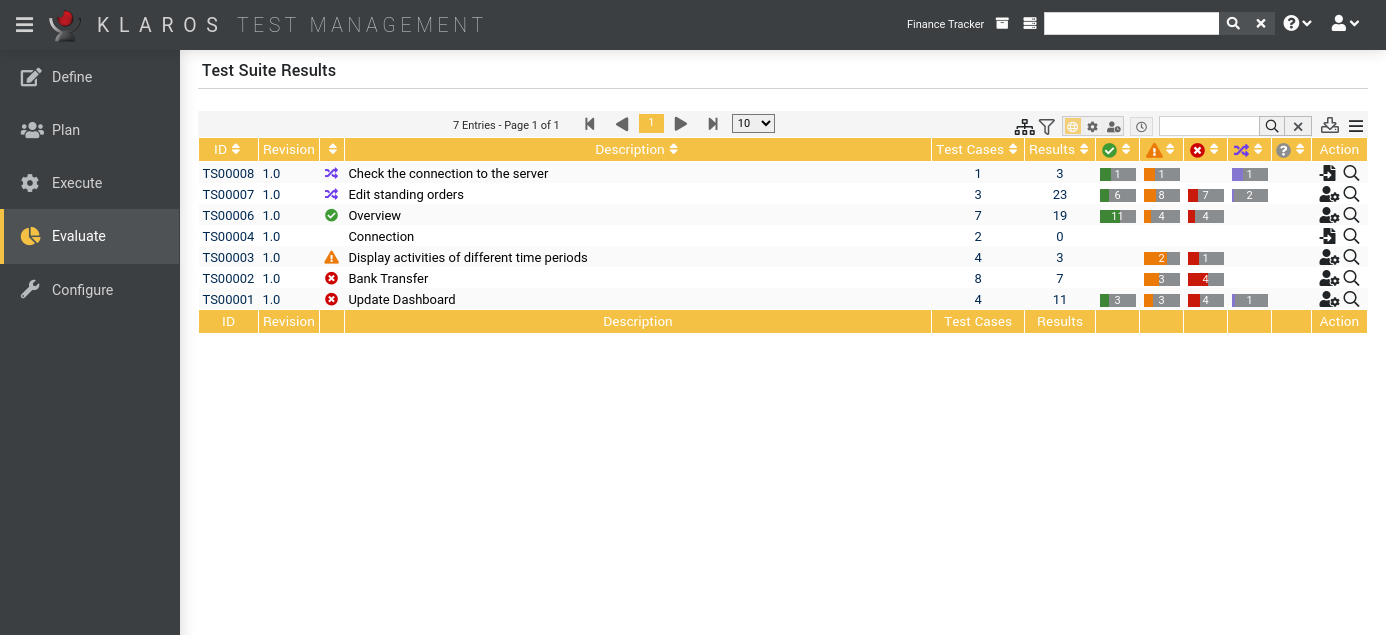
The Test Suite Results page shows an overview of all test suites, including the number of results.
The table shows the following values:
|
ID |
The automatically assigned ID. |
|
Revision |
The revision of the test suite. |
|
Additional Information |
A tooltip appears when the cursor is placed over the icon shown here. |
|
Description |
The description of the test suite. |
|
Test Cases |
The number of test cases. |
|
Results |
The number of test suite results. |
|
Action |
The executable actions. |
The following actions can be performed in the action column:
The following operations can be performed in the line above the table on the right:
All operations are described in detail in Section 5.2.3.1, “Overview Page”.
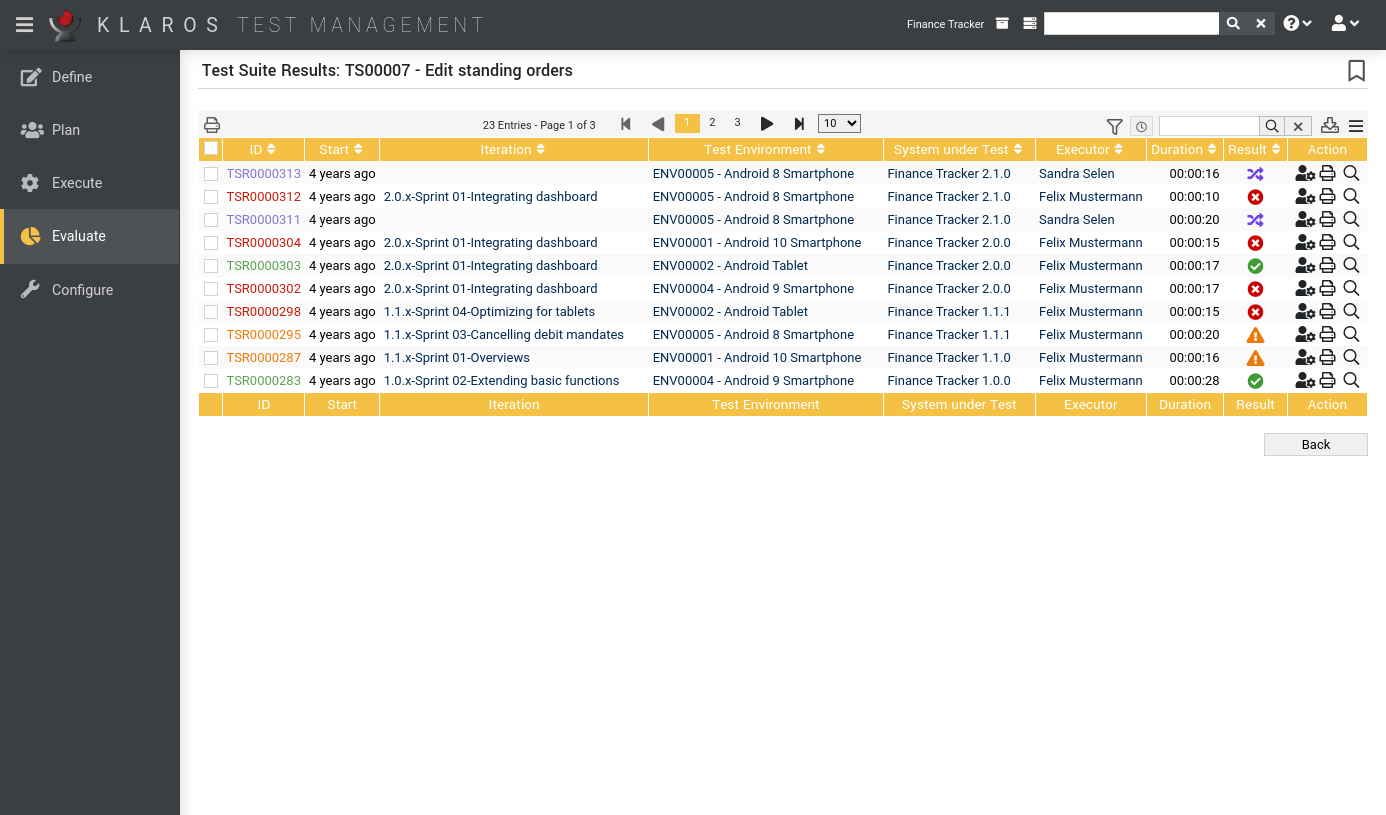
The “Test Suite Results” page shows all executions of the selected test suite, including the result, the used system under test and the test environment ( Figure 9.28).
The collapsible panel on top of the page shows the details of the selected test suite. Below it is a table with all results.
The table shows the following values:
|
ID |
The automatically assigned ID. |
|
Start |
The start time of the test run. |
|
Test Environment |
The test environment in which the test was executed. |
|
System Under Test |
The system under test that was tested. |
|
Executor |
The name of the user who last executed the test run. |
|
Duration |
The execution time. |
|
Result |
The test case result (Passed, Failed, Error, Inconclusive or Skipped). |
|
Action |
The executable actions. |
The following actions can be performed in the action column:
Certain actions can also be applied to several test suite results at once. To do this, select the test suite results to which the action is to be applied in the leftmost column.
The following bulk actions are supported for test suite results:
For additional information, see Section 5.2.3.1.5, “Bulk Actions”.
The following operations can be performed in the line above the table on the right:
All operations are described in detail in Section 5.2.3.1, “Overview Page”.
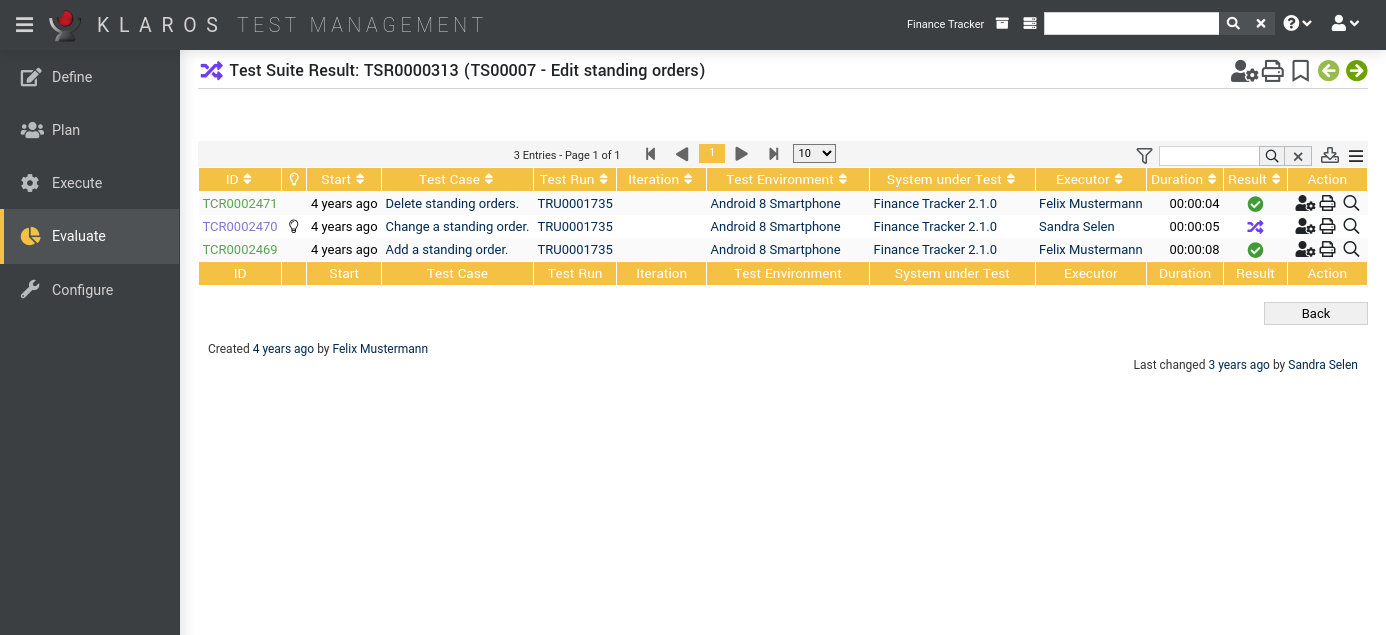
This page shows a single test suite result and its test case results.
Auf den Detailseiten lassen sich jeweils folgende Aktionen vornehmen:
|
Execute this single test suite |
Re-execute the test suite. |
|
Execute this single test suite |
Re-execute the test suite. |
|
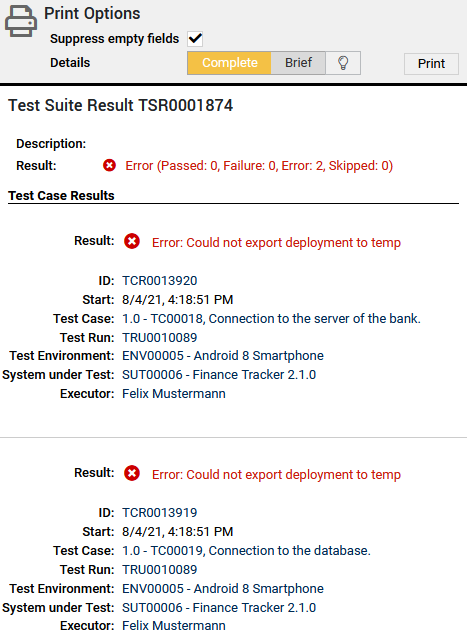
Open print view |
A print-ready view of the test suite result can be created here. With a click on the icon this opens in a new browser tab. Print views are described in detail in Section 5.2.3.2.1, “Print Pages”. |
|
Create Bookmarks |
Requirements may be linked to from outside Klaros-Testmanagement using the link on the icon. By clicking on the icon this link will be copied to the clipboard. Weitere Informationen hierzu finden Sie unter Section 5.2.3.2.2, “Bookmarks”. |
|
Browse |
Use the green arrows at the very top right to switch between the test suite results present on the previous page. |
|
|
 |
|
| 9.4. Test Case Results |  |
9.6. Issues |